
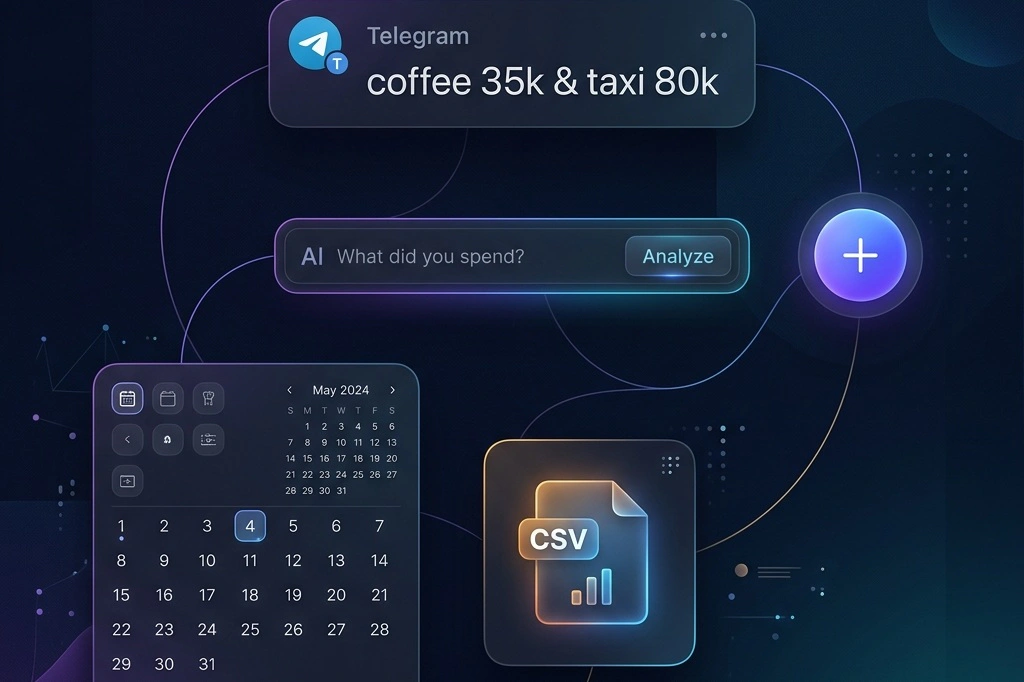
There's a quiet war being fought in the personal finance app industry. On one side: apps that link directly to your bank account and auto-import every transaction. On the other: apps that ask you to log expenses manually. Both camps have passionate advocates. Both have serious tradeoffs.
Simple Money Tracker sits firmly in the middle — but not because we couldn't choose. Because we think that choice itself is the product. This post breaks down every way you can log an expense in our app, compares it honestly to the bank-linking approach, and helps you figure out which method actually fits your life.
The Bank-Link Promise — and Its Hidden Costs
Auto-importing from your bank sounds like the dream. Connect once, and every transaction flows in automatically. No manual entry. No forgetting. You open the app and everything is already there.
But ask yourself: what does 'connect once' actually mean? It usually means sharing your banking credentials — sometimes via your actual login and password, sometimes via a service like Plaid or TrueLayer that acts as an intermediary. You're granting a third-party app read access to your full transaction history. Every ATM withdrawal. Every recurring subscription. Every embarrassing late-night food delivery.
The security tradeoffs are real. Third-party credential aggregators have been breached before. Banks in many countries — especially in Southeast Asia — don't officially support open banking APIs, which means some apps resort to screen-scraping, essentially automating login to your internet banking portal on your behalf. That's not a theoretical risk. That's your OTP landing on someone else's server.
And then there's the practical friction: not all banks are supported. The connection breaks when the bank changes its login flow. Categorization is done by the aggregator, not by you, so 'Nguyen Thanh Liem transfer' shows up as 'Unknown' and stays that way. You lose control of the data the moment it enters the pipeline.
Bank linking = convenience with a cost.
Auto-importing saves time at the entry point — but it risks your credentials, exposes your full financial history to third parties, and often fails for smaller regional banks. The tradeoff is real, and it's worth thinking about before you connect.
Manual Entry — The Forgotten Virtue
Manual entry gets a bad reputation because most apps make it painfully slow. Six fields. Three dropdowns. A date picker that takes five taps to reach last Thursday. No wonder people give up.
But manual entry has a genuine superpower that auto-import doesn't: intentionality. When you pause to log an expense — even for five seconds — you form a conscious connection between the act of spending and the record of it. Research in behavioral economics consistently shows that this friction, when it's the right amount of friction, is actually beneficial. It makes you more aware. More deliberate. More likely to think twice before the next purchase.
The problem was never manual entry itself. The problem was the form. So we asked: what if manual entry didn't feel like filling out a tax return?
Method 1: Telegram — The Fastest Entry on the Planet
You just paid for coffee. You have three seconds. You open Telegram — which you probably already have open — type 'coffee 35k', and hit send. Done. The expense is logged, categorized, and encrypted in your account.
That's two to three interactions total. No app to launch. No screen to unlock. No form to fill. If you have multiple expenses — say you just settled lunch for the whole team — you can log all of them in a single message: 'pho 55k & milk tea 30k & grab home 80k'. The AI parses each item, extracts the amounts, and stores three separate records simultaneously.
The natural language engine understands relative dates too. 'Coffee 35k yesterday' correctly timestamps the expense to the previous day. 'Dinner 120k last Friday' works. So does 'gym membership 300k on the 1st'. You write the way you think, not the way a database expects.
Auto-categorization is where it gets genuinely impressive. The system doesn't just match keywords — it applies your personal custom rules first. If you've told the app that 'grab' always maps to 'Transportation', that rule fires before the AI even looks at it. Your vocabulary becomes the app's native language. The more you use it, the more it already knows.
2–3 interactions. Up to 10 expenses at once. Zero forms.
Telegram input is the fastest manual entry method we've ever built. It meets you where you already are, handles multiple expenses in one message, auto-categorizes based on your custom rules, and requires no app launch whatsoever.
Method 2: AI Input Bar — Smart Entry from Anywhere in the App
If you're already using the app — checking your budget, reviewing last month's spending — there's a faster path than navigating to the Expenses page. The AI input bar sits in the header, always visible, always ready.
Type 'lunch with clients 145 yesterday', press Enter, and the AI does the rest. A dialog opens with every field already populated: the description, the inferred category, the amount, the date. You review it for two seconds and hit Save. Four to five interactions total.
The difference from Telegram is subtle but meaningful: you're already in the app context, so the confirmation dialog feels natural. You can catch anything the AI got wrong before it saves. It's a good balance between speed and control — especially for expenses where the details matter.
Method 3 & 4: Quick Button and Expense Form — Full Control, Your Terms
Not every expense needs AI inference. Sometimes you want to fill in the details yourself — you know exactly what category it belongs to, you want to set a specific mood tag, and you'd rather not rely on AI getting it right. For those moments, the classic form approach is your friend.
The floating Quick Button lives in the bottom-right corner of the screen. It's always there, on every page. One tap opens a compact menu; another tap opens the Add Expense dialog. Six to eight interactions to complete entry, with today's date pre-filled so you don't have to touch the date picker for most entries.
The Expenses page has its own Add button that opens the same dialog. The experience is identical — the only difference is how you get there. Both paths give you the full form: category grid, description, amount, date, and mood emoji. Nothing hidden, nothing automatic you didn't ask for.
This method typically takes 20–35 seconds. It's the slowest of the quick-entry methods, but it's also the most precise. If you're logging an unusual expense — something the AI wouldn't categorize correctly, or something with a date that needs careful selection — manual form entry is the right tool.
Method 5: Calendar View — Entry Anchored in Time
Sometimes you open the app and realize you forgot to log yesterday's dinner. Or the parking fee from three days ago. The Calendar view is built exactly for this moment.
Switch to Calendar mode on the Expenses page and you see a full monthly grid. Click any date cell — past or future — and the Add Expense dialog opens with that date already set. You don't have to think about what day it was. You just find it visually and click.
It takes a step or two more than the other methods — you need to switch views, then select the date — but for catching up on past expenses, it's the most intuitive workflow. Seven to nine interactions total, but with a genuinely different mental model: you're navigating time, not filling a form.
Method 6: CSV Import — When You Have History to Move
Every great personal finance journey starts somewhere. And for many people, 'somewhere' is a spreadsheet they've been maintaining for years. Or a different app they're migrating from. Or an export from their bank's website.
CSV import isn't a daily workflow — it's a power tool for one specific job: bringing historical data into the app without entering it line by line. Prepare a file with four columns (Date, Category, Description, Amount), drag it into the Import dialog, and the system validates every row, reports any errors, and commits the entire batch to your account at once.
For a single expense, CSV import is the slowest option by far. For a hundred or a thousand? It's the only option that makes sense. Use it once to migrate, then switch to one of the faster methods for ongoing entry.
The Tradeoffs Are Real — And That's Okay
Let's be honest about what each method gives up in exchange for what it offers. Telegram is the fastest, but it's a Pro feature, it requires setup, and the AI occasionally gets a category wrong. The AI header bar is fast and always available, but it's one expense at a time, also Pro-only, and the confirmation step adds a few seconds. The form-based methods are slower, but they're available on the free plan, they're 100% explicit, and they never surprise you.
Calendar entry adds navigation overhead but solves a specific mental model problem. CSV import is clunky for single items but unbeatable for bulk migration.
No method is perfect. Every one of them involves a tradeoff between speed and control, between automation and intentionality, between convenience and privacy. The right method isn't the fastest one — it's the one that fits how you think and how often you actually use it.
The best method is the one you'll use consistently.
Telegram for speed. AI bar for app-based quick entry. The form for precision. Calendar for catching up. CSV for migration. Use whichever one removes enough friction that you'll actually do it — and your financial picture will take care of itself.
Side-by-Side: All 6 Methods at a Glance
| Method | Interactions | Time (1 expense) | Multi-entry? | Auto-category? | Plan |
|---|---|---|---|---|---|
| 🥇 Telegram Bot | 2–3 taps | 5–10 sec | ✓ Up to 10 | ✓ AI + Custom rules | Pro |
| 🥈 AI Header Bar | 4–5 taps | 8–15 sec | ✗ 1 at a time | ✓ AI + Custom rules | Pro |
| 🥉 Quick Add Button | 6–8 taps | 20–35 sec | ✗ 1 at a time | ✗ Manual select | Free |
| 🥉 Add Expense Form | 6–8 taps | 20–35 sec | ✗ 1 at a time | ✗ Manual select | Free |
| 🏅 Calendar Click | 7–9 taps | 30–45 sec | ✗ 1 at a time | ✗ Manual select | Free |
| 📄 CSV Import | 5–6 + prep | 2–10 min setup | ✓ Unlimited rows | ✗ Pre-set in file | Pro |
SMT vs Bank-Linking Apps: The Real Tradeoff Table
Still wondering how this stacks up against apps that pull data from your bank automatically? Here's the honest comparison.
| Criterion | Bank-Linking Apps | Simple Money Tracker |
|---|---|---|
| Entry speed (1 expense) | Instant — auto-imported | 5 sec (Telegram) – 35 sec (form) |
| Multi-expense batch | All transactions auto-pulled | Up to 10 via Telegram; unlimited via CSV |
| Credential risk | High — shared with 3rd party | Zero — no bank access |
| OTP / banking password exposure | Possible (screen-scraping apps) | Never — not applicable |
| Bank support in SEA | Limited / often unsupported | Works with any bank, cash, e-wallet |
| Categorization control | Auto, often inaccurate | AI + your custom rules |
| Cash & informal spending | Not tracked (not a transaction) | Fully tracked via any method |
| Data encryption | Varies by provider | Zero-Knowledge end-to-end |
| Connection maintenance | Breaks when bank updates login | No connection to maintain |
| Spending awareness | Low — passive import | High — active intentional logging |
| Free plan available | Often limited / paywalled | Yes — core features free |
How This Compares to Auto-Import
Put it all together: Simple Money Tracker's fastest entry method (Telegram) handles ten expenses in under fifteen seconds, with AI categorization, relative date parsing, and zero credential sharing. The slowest method (manual form) takes about thirty seconds per expense, with full control over every field.
A bank-linked app has zero manual entry time — but it also means your credentials are stored by a third party, your full financial history is exposed, and you're depending on a connection that breaks every few months. For users in countries with mature open banking (UK, EU), the equation is different. For users in Vietnam, Thailand, Indonesia, or most of Southeast Asia, where official open banking APIs are limited or nonexistent, the so-called convenience of auto-import often means scraping, credential sharing, or simply not having your bank supported at all.
We made a deliberate choice not to go down that path. Not because we couldn't, but because we think the privacy math doesn't work out. Your bank data is arguably the most sensitive data you have. We didn't want to be the app that got you to hand it over for the sake of saving a few taps.
Make the Smart Choice
There's no universally correct way to track expenses. The right method depends on your habits, your risk tolerance, your relationship with automation, and honestly, how much you trust any given company with your financial history.
What we can tell you is this: Simple Money Tracker gives you six different answers to the same question, each optimized for a different moment and mindset. Try the Telegram bot for a week and see if it changes how often you actually log expenses. Experiment with the AI input bar when you're already in the app. Fall back to the form when you need precision.
The goal isn't perfect speed. The goal is a financial picture that's accurate enough to be useful, captured with enough regularity to reveal patterns, and stored in a way that respects your privacy. When you find the method that makes all three of those things feel effortless, you'll know you've found your workflow.
And when that happens — you'll wonder how you ever tracked money any other way.